Add photos, videos and any file
Photos, videos, music and documents come into JayLocked from the photo library, the device's files or the camera. The ways in differ by system.
On
 iPhone and iPad
 Android
- MacIn part
 WindowsIn part
Every kind of file is accepted. Pictures are filed under Photos, films under Videos, sound under Music and everything else under Documents, by the kind of file it is.
On a phone you add with the round + button at the bottom right of the library. On a computer the button Add to JayLocked is at the top of the window. What you add from inside a folder goes into that folder.
Several files can be picked at once. JayLocked encrypts each one as it comes in, then says how many were saved and where the originals still are.
- From the photo library, through the system's own picker for photos and videos. On iPhone, iPad and Mac the system asks once whether JayLocked may read the photo library, which is how each photo keeps its file name.
- From the device's files, through the system's own file chooser.
- From the camera, on iPhone, iPad and Android: what you take there goes straight into the vault and is the only copy.
- From another app: a file handed to JayLocked waits and comes in as soon as the vault is open. This exists on iPhone, iPad, Android and Mac.
- A file keeps the name it had, with its extension as it was written. Only what the camera takes inside JayLocked gets a name from JayLocked, made of the date and time.
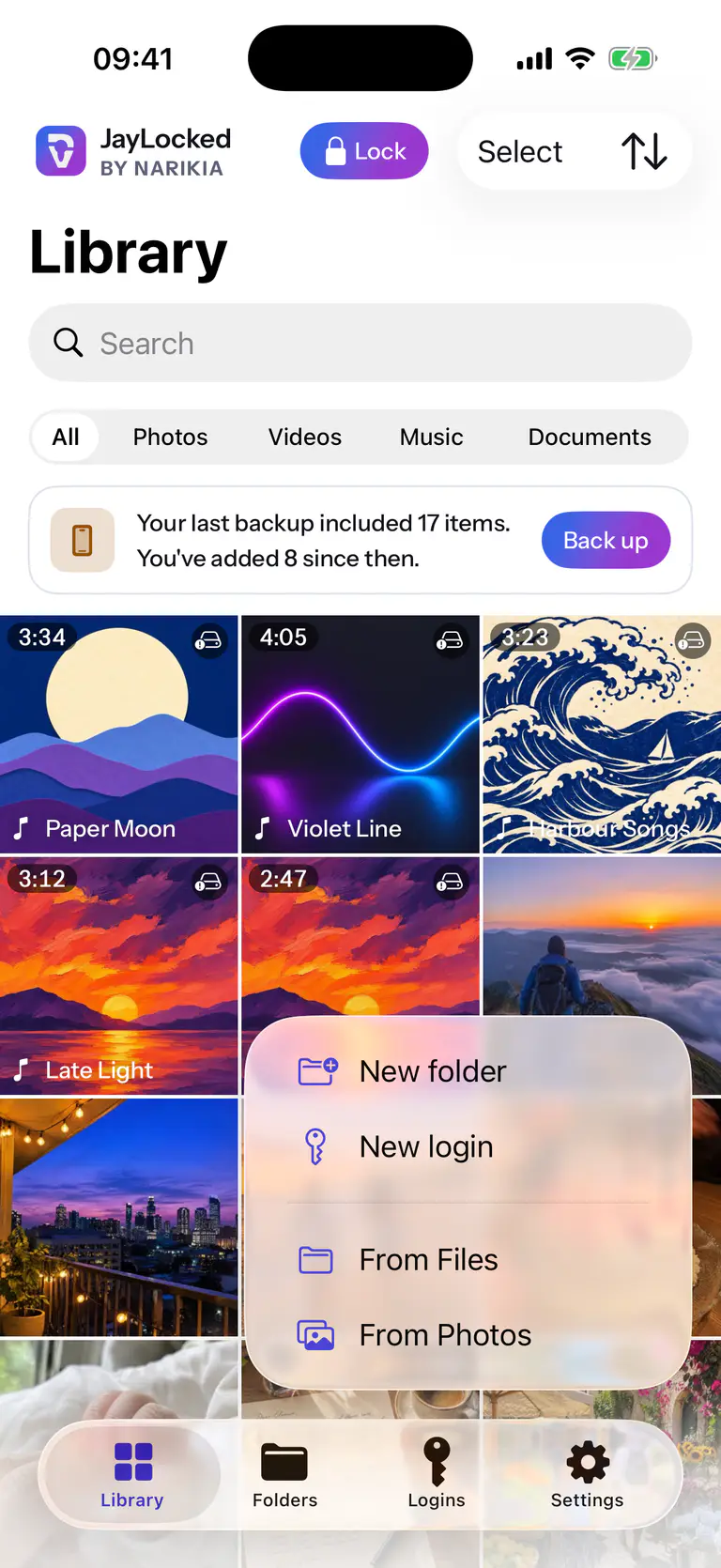
 iPhone
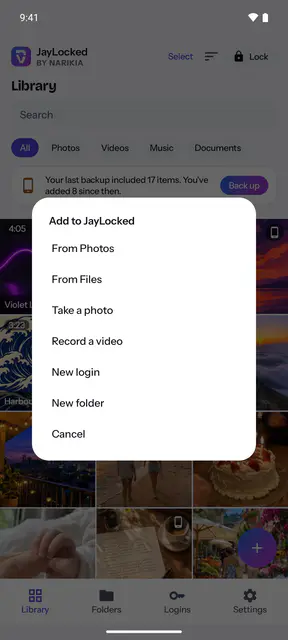
 Android


What differs from system to system
- iPhone and iPad
- The + button offers From Photos, From Files and Take a photo, where the system camera takes a photo or records a video. There is no drag and drop on iPhone and iPad, and a file can also be opened in JayLocked from another app.
- Android
- The + button offers From Photos, From Files, Take a photo and Record a video, and JayLocked is in Android's share sheet for pictures, videos, sound and other files. From Photos opens Android's file chooser, where every picture has its file name. The two camera choices ask for the camera permission the first time.
- Mac
- Add to JayLocked opens the Mac's file chooser for files and whole folders, and the arrow beside it offers From Finder and From Photos. Files and folders can also be dropped on the window or the Dock icon, even while the vault is locked, and there is no camera import.
- Windows
- Add to JayLocked offers From Files, which opens the Windows file dialog for several files of any kind. There is no entry for a photo library, no camera, no drag and drop and no handing over from another program.
Where it ends
- Adding copies a file into the vault. The original stays where it was until you remove it, and JayLocked tells you where that is.
- Windows has one way in, the file dialog. There is no drag and drop, no camera and no handing over from another program there.
- On the Mac a folder that you add stands for every file inside it. The folder's own structure is not rebuilt in JayLocked.
- On iPhone, iPad and Mac a photo's file name is known only with access to the photo library. Without it a photo takes the name the picker suggests, and for an edited photo that is not its own.
How to
- Add photos and videos Bring photos and videos from your photo library into JayLocked, then choose whether the originals stay where they were.
- Add files Bring documents, music and any other file into JayLocked, then choose whether the originals stay where they were.
- Take a photo inside JayLocked On iPhone, iPad and Android, take a photo or record a video that goes straight into the vault and never reaches your photo library.